

How It Works
Follow these steps
from Sign-up to Service Usage
Brand Management
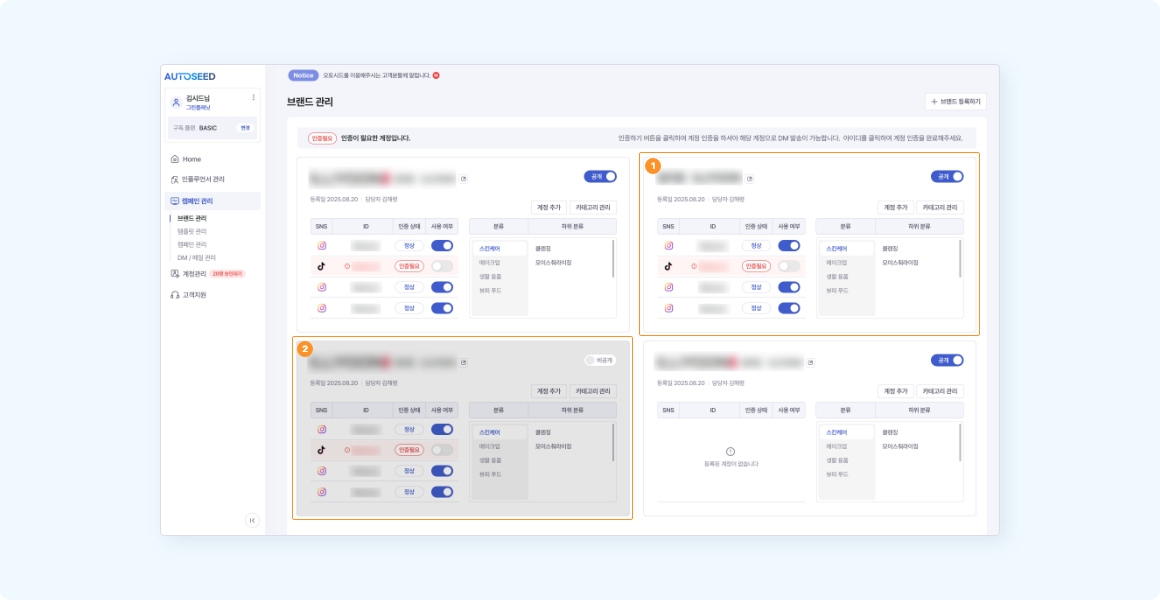
1Register Brand
Registering a brand allows you to select it when creating campaigns. Manage brands with name and additional details, which can later be used for filtering campaigns or search queries.
2Edit/Archive Brand
Edit existing brands or hide unnecessary ones.
Archived brands do not affect previously linked campaigns but cannot be selected for new ones.
Social accounts registered per brand are used as dispatch senders. You must complete SMS verification after registering account IDs. Accounts marked 'Verification Required' cannot be used, so please verify them regularly.
Template Management
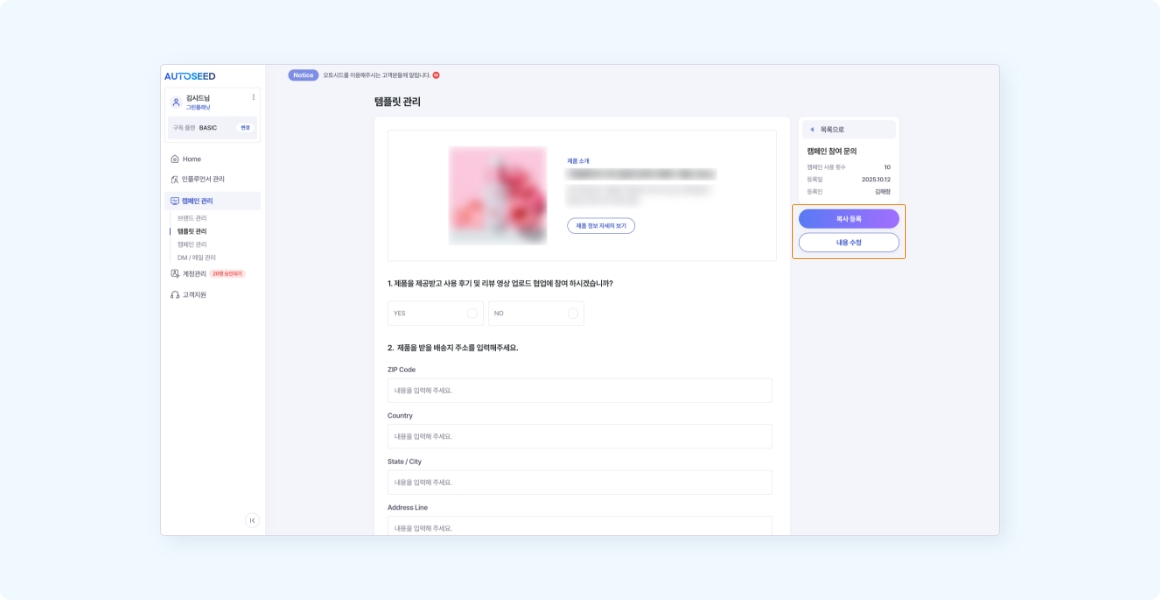
1Create Template
Write and save templates for repetitive campaign messages or survey forms. Saved templates minimize composition time. Templates contain essential questions for automated step shifts (e.g., participation consent and shipping address). Optional deletion of these is allowed, but auto-step shifts will be disabled without them.
2Copy and Edit Template
Copy existing templates to create different versions with minor modifications, leaving the original intact.